Many of us have seen the Google Slides: Choose Your Own Adventure activity as documented by Eric Curts Blog or Alice Keeler in 2016. With the release of the new Google Earth we can now build our own “choose you your own adventure” story in Google Earth
Google Earth was updated to allow users to create their own points of interest, add photos, and content. In the coming months we’ll see classrooms engaging in storytelling connected to our own globe. Think of this as the next evolution of Tour Builder. You are immersed in the rich content of Google Earth adding your own customized content and information. The Google Earth projects you create live in your Google Drive. Like many things Google you can also share your creations with others. We don’t have to only see your vacation slideshow any more. You can embed that content in a Google Earth Project and we can relive it with you.
Classrooms can especially take these new features on providing a new way to express information learned. History reports can come to life with enriched location marker tags and links to further resources. Novels set in the world can be geolocation with photos and commentary. Collaboration in the world takes on a completely different meaning.
The richest feature I find is the ability to use HTML in the creation process. Inside the content you create there is ability to link to external content or project features. This internal feature linking makes the choose your own adventure possible. Here are the steps to start exploring:

- Launch Google Earth in Chrome
- Create a new project with the project button on the left side bar


- Use the "New feature" button to Search and add places to your project

- Use the "Add to project" button to add the location to your project.
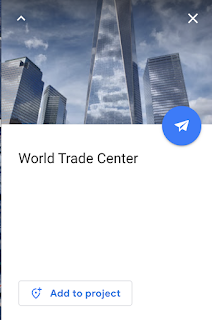
- Use the Edit pencil to make changes to the view and displayed card

- Replace the information provided by Google
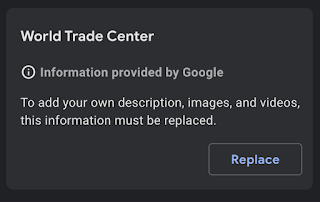
- You can now add a photo and text of your choosing to the card

- In your text you can link words to other features you have created in the project using the Add link button. Create another feature and come back to the previous feature to see it as a linking option.


- When you have Google Earth: Choose Your Own Adventure story ready share it for others to explore.


Another use is the ability to open a Google earth project for collaborative editing. Not only can students share projects for collaboration but we can use them in our own professional developments. Why not open your PD asking members where they are coming from and marking on a collaborative Google Earth project? Curate particular location resources your participants love; best field trips, places to study, great sightseeing areas. The collaboration in Google Earth is powerful. Let's take advantage here. I’m opening up my own Google Earth Project hoping you’ll leaving me/us some information on where you might be reading from and tell me/us about yourself.


