Showing posts with label google. Show all posts

Google Earth: Choose Your Own Adventure

Many of us have seen the Google Slides: Choose Your Own Adventure activity as documented by Eric Curts Blog or Alice Keeler in 2016. With the release of the new Google Earth we can now build our own “choose you your own adventure” story in Google Earth
Google Earth was updated to allow users to create their own points of interest, add photos, and content. In the coming months we’ll see classrooms engaging in storytelling connected to our own globe. Think of this as the next evolution of Tour Builder. You are immersed in the rich content of Google Earth adding your own customized content and information. The Google Earth projects you create live in your Google Drive. Like many things Google you can also share your creations with others. We don’t have to only see your vacation slideshow any more. You can embed that content in a Google Earth Project and we can relive it with you.
Classrooms can especially take these new features on providing a new way to express information learned. History reports can come to life with enriched location marker tags and links to further resources. Novels set in the world can be geolocation with photos and commentary. Collaboration in the world takes on a completely different meaning.
The richest feature I find is the ability to use HTML in the creation process. Inside the content you create there is ability to link to external content or project features. This internal feature linking makes the choose your own adventure possible. Here are the steps to start exploring:

Google Earth Launch page

  1. Launch Google Earth in Chrome
  2. Create a new project with the project button on the left side bar
    Google Earth Project button

    Google Earth New Project button
  3. Use the "New feature"  button to Search and add places to your project
    Google Earth Feather choices
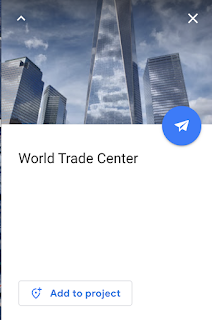
  4. Use the "Add to project" button to add the location to your project.
    Card with Add to projects button
  5. Use the Edit pencil to make changes to the view and displayed card
    Edit feature button
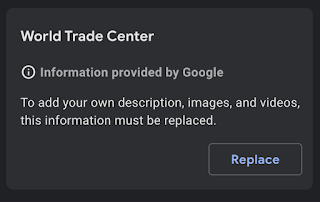
  6. Replace the information provided by Google
    Replace information button
  7. You can now add a photo and text of your choosing to the card
    Place Card information editor
  8.  In your text you can link words to other features you have created in the project using the Add link button. Create another feature and come back to the previous feature to see it as a linking option. 
    Add link button above text description box
    Link to feature section
  9. When you have Google Earth: Choose Your Own Adventure story ready share it for others to explore. 
    Share button


I took some time to build an Elementary example. While it’s incomplete you get the idea.

Another use is the ability to open a Google earth project for collaborative editing. Not only can students share projects for collaboration but we can use them in our own professional developments. Why not open your PD asking members where they are coming from and marking on a collaborative Google Earth project? Curate particular location resources your participants love; best field trips, places to study, great sightseeing areas. The collaboration in Google Earth is powerful. Let's take advantage here. I’m opening up my own Google Earth Project hoping you’ll leaving me/us some information on where you might be reading from and tell me/us about yourself.


Google App Maker


Andrew Stillman of AmplifiedIT took some time to run through an overview of Google's App Maker. If your are looking to dig in here's Developer documentation.

Andrew Stillman bearded speaking in to a mic held by a hand as he types on a laptop.
First lets go over what it's not:
  • A replacement for the Forms to Sheets workflow. App Maker works with a login on the domain. So a public facing App is not a thing here. A Form would be a better choice to collect things like Parent Emails. 
  • A Mobile App maker. My instinct when I hear App is a mobile solution. This is geared to Web app workflows.
  • A no code solution. As slick as it is with drag and drop, autocomplete and GUI it does require knowledge of coding. Specifically HTML, CSS, Javascript and by extension Google Apps Script. 
  • App Maker is similar in ways to Access, or FileMaker Pro. You can work with related data tables and events. 
  • The data can be organized and displayed by user type in some really slick looking Googley ways. 
  • It's a Low code environment so can be worked with by anyone with some computational skills. 
  • Integrates with the G-Suite system through coding including the directory to provide a level of security to the data being worked with. 


But what it is an can be makes it powerful for any environment with a lot of data flow and systems management.


App Maker allows the creation of some really great workflows and automations. SignUps, Permission Slips, Admissions, Book Reports and more become a customizable operation. These things can be developed or even better reach out to AmplifiedIT to develop it for you or just walk you through the process.

Andrew said it best, "Sheets and Forms have gotten us this far but App Maker is the next step." We all have those systems we are trying to improve, simplify or automate. App Maker makes this a real possibility without having to shell out the funds for software. It's collaborative and relatively inexpensive. $15 gets you started on the low end for a GoogleCloud account and gives you a change to play. From there your creations can scale up for various environments. I'm excited to explore more and create some better workflows.

Check out the
App Maker Bootcamp


Don't Talk At Me, Talk With Me

Insufficient permission
I had an opportunity to attend the Google Cloud OnBoard ML yesterday in NYC. My expectations were an introduction to the Google Cloud, some Machine Learning, and a bit of a sales pitch. I expected to walk away with some minor new skill in doing a linear regression on Google's Platform. What I walked away with was a clear experience of what education should not be. Even as a theatrical experience it should not be what Google gave us. Large companies would benefit from engaging with life long educators on how to model and connect with other during their events.

On arrival I set myself up at a hightop to do some work. It wasn't long before a Googler was engaging some attendees behind me. Of the three being chatted up there was a vast range of skills sets with their experience in cloud technologies and machine learning. One had no experience, another had played with cloud products and another had run some machine learning with scikit-learn. This was a good snapshot of what I saw the rest of the day; various skill levels with a common interest to learn and know more about machine learning.

The event started in a large ballroom with close to 1000 of us seated at thin tables facing a presenter and two large screens. This was my position for the majority of the day. A brief video was presented on organizing data and machine learning. Then a kickoff by a customer relations manager. All a basic intro with housekeeping format to begin the day. This degraded educationally from here.

ROITraining lead the training elements of the day. The format was a lecture that almost wanted to be socratic but failed in a large room. Followed by a demo that moved so fast if you wanted to follow along on your own terminal you needed to have an understanding of what was being demonstrated before the demonstration. This went on for six modules with lunch and a break in between.

While I soaked up the knowledge of the Google infrastructure and gained a better understanding of how the cloud worked there wasn't an opportunity to try the skills presented or anyone easily accessible to support when stuck. The intention is to "on board" the users to machine learning on the cloud. What I experienced was being talked at for a day.

Teachers capitalize on the basic fact that students show up everyday to learn something. Often not all students want to be in the classroom learning. Large events such as what Google offered provide rare opportunities of a filled space of eager learners. When you have that level of attention on a topic of product every moment counts. Engage the learner, build connections, and develop entry level skills. Avoid a chalk and talk scenario.


  • Provide opportunities for intimate questions or anonymous questions. Have a back channel going. a place for some one to ask that question they don't want to feel stupid for asking publicly or wasting time on. 
  • Setup sections for various levels of support help. Provide the support for that section. 
  • Direct attendees to live help in the moment. You have me in the room now. Don't direct me to an online course. I would stayed at home and done in. 
  • Connect members in similar and diverse fields. Such similarities and diversities can solve more problems when connected than apart. Create the opportunities for connections. 
  • Talk with me, not at me. You have me present engage me. Work with me. Provide opportunities for me to explore and be successful under your guidance. 
  • Give immediate reference resources. Don't assume everyone knows how to begin a demo. provide the lowest level documentation or be clear about prerequisites. 
I've been in many effective classrooms. The most effective for older learners provide autonomy to the learner with direct facilitated support and easily accessible resources. Consider the least skill level in the room and provide ways for them to be successful and grow. 

Why are we still fighting the tech implementation battle?

I’ve recently seen a few posts on social media indicating technology takes away from education. I’ve witnessed certification opportunities from large companies being redesigned to reach educators. This year one large company, only now, has released a tablet version of their product. *coughgooglecough* 

Why are we still fighting this battle of implementation of technology in education rather than embracing it? Tech in education is not an argument. Certification is a must and shouldn’t have to be sold. Simple handheld devices must be the norm for our entry point students.

I can access college level coursework on my phone at anytime. I’m able to explore Mars in Virtual Reality from 360 images recently sent back to earth. I can reach hundreds of colleagues to collaborate on ideas. Why would I hold my students back from having access to resources and skills they will need for their own success when they graduate? 

If this is the world now what will it look like to our kindergarteners?  To give perspective, our 10th graders were in kindergarten when the first iPhone came out in 2007.

Technology is a part of education. Technology is a part of our world. It’s not a question and is not an argument any more. Every teacher needs to be certified in technology products. Thankfully, right now, most large companies provide free certifications. They want students using their products so they train the teacher. Every teacher out of obligation to the future of our students is obligated to be certified in at least one productivity suite or operating system. Ignorance and age is not an excuse. 

Yes, books still have a place in the classroom. Literature is necessary for our students. But do they have to be on paper where they can be lost and/or destroyed? Can’t we hold them in a place where discussions can happen at any time? 

Why do I still see questions as to the efficacy of technology in education? It’s not completely about how well tech supports learning. Technology is embedded in everything. Our students must know how to navigate with it.  Thereby we need to know. 

  • Certify yourself in at least one major product. Right now that’s looking like Google, Apple, or Windows. You can do it at home and online. Training material is offered by each organization. 
  • Fight for reasonable and responsible technology use in your classroom. If you aren’t in a 1:1 environment reach out to your community for old devices. Look in to grants to support providing technology access. 
  • Allow technology into your curriculum. That is to say your curriculum should not be about technology unless that’s what you teach. Let students create work through devices. Consider going paperless if appropriate. Look at the SAMR model to support your growth.
  • Share, show, collaborate, communicate with fellow educations on how technology in can improve education. Small steps of change by many can lead to great shifts. Better yet drag the least technical among you into this world of tech in education and you will see a rush to try it. Fear often holds back change. Be courageous in your steps forward.

Teachers currently in education programs need access to certification programs. Teachers currently teaching need to seek out certifications even when a district doesn’t offer it. Becoming fluent in immersing technology in your classroom doesn’t just make you a better teacher. It makes you a current teacher. 

Collect Quick Formative Feedback

We often send our students to complete independent writing work. We circulate the room and the students that are vocal get the attention. But what about those students that don't raise their hand to ask for help? How can we provide an easier way for them to reach out to us? Well, here's a way to create a custom menu for a document and collect some formative feedback.

Sample:
Spreadsheet collecting data, Document which can be copied with the code.

Our starting function is the onOpen function. This is a reserved word which the doc looks for in the script. As the document is opened this script is run. In this case we engage the DocumentApp library of code. The getUi begins the user interface. We createMenu and name it something. I've named it with a emoji of a hand to support the idea that we don't always need menus with words. This menu will show up as a new main menu like File or Edit. We then add a menu item with addItem. The first item is a sad face. the sad face is connected to the function of helpMe. The second item is a thumbs up connected to the function called doingGood. Lastly we all it all to the user interface with addToUi. These menu items are on separate lines but they are really strung together commands. The semicolon identifies the end of the line of commands.

function onOpen(e) {
  DocumentApp.getUi()
      .createMenu('✋')
      .addItem('😕', 'helpMe')
      .addItem('👍', 'doingGood')
      .addToUi();
}

The helpMe and doingGood functions are nearly identical except for the message we set in the secon column. I'll use the helpMe function to detail what's happening. The same will be true for the doingGood and any others you want to make.

To begin we set a global variable as the sheet ID. A global variable is set outside of the functions and is used for all the functions. Because our variable isn't changed by the program we could also declare it as a constant but we'll keep it simple and just use var to declare the sheetid variable. The sheet id can be found in the url of the sheet. The sheet needs to be shared as editable for it all to work.

Our helpMe function starts by assigning the spreadsheet by the id and the specific sheet by name to the sheet variable. We next identify the last row used and assign it to the variable lrow. We then get the range of the last used row represented by lrow plus 1. This would be the next empty row. This row with the column of 1 is the cell we get and set the value of the currently logged in user email. The range then is grabbed for the second column and the value is set to the words 'Help me!'.

var sheetid = '1C1bUbiouvFgeE6qfZjknW9zumpMLOHYcqQNjO39sVAI';

function helpMe() {
  var sheet = SpreadsheetApp.openById(sheetid).getSheetByName('Sheet1');
  var lrow = sheet.getLastRow();
  sheet.getRange(lrow+1, 1).setValue(Session.getActiveUser().getEmail());
  sheet.getRange(lrow+1, 2).setValue('Help me!');
}

function doingGood() {
  var sheet = SpreadsheetApp.openById(sheetid.toString()).getSheetByName('Sheet1');
  var lrow = sheet.getLastRow();
  sheet.getRange(lrow+1, 1).setValue(Session.getActiveUser().getEmail());
  sheet.getRange(lrow+1, 2).setValue('Doing Good');
}

This is a pretty simple code to create a quick menu for formative feedback. Consider stopping the class a few minutes into independent work and asking the class to select the menu item that best identifies how they currently feel about the topic. You would get immediate feedback on the spreadsheet. They may have to accept permissions the first time around. You can also add a timestamp to another column by setting the value to .setValue(new Date()) You may also want to set another column with a particular class name. There's alot you can do with this from here.

Auto Add User to Sheets

Ever needed to grab the name of the user that edited a line of a Sheet? Sure you can comb through the version history but isn't it better to just see the the information right on the sheet? Google Scripts provides a way to capture the user that edited. Let's take it one step further and make a bathroom log. Students logged in to their Google Account on the same domain as you will be able to click an icon and create a record that they are going to the restroom. No one will be able to mark the sheet while they are out. Sample

So the code we need to know to identify the user currently editing the sheet would be Session.getActiveUser().getEmail()
To break this down, the Session refers to the period a user is logged in. A session can be time limited or limited to the particular device being used. We use the Session to access the method of
getActiveUser()
The active user is the user logged in. From here the only selection is
getEmail()

Stringing these together and we  can identify who is using the sheet.

We begin our function creating our variables to represent the Spreadsheet and the currently active sheet.

function bathroom() {
  var ss = SpreadsheetApp.getActiveSpreadsheet();
  var sheet = ss.getActiveSheet();
}

Because we will be adding the user to the last empty row we want to identify which row that is. sheet.getLastRow() returns the value of the last filled row. So the next available row would be sheet.getLastRow() + 1.

function bathroom() {
  var ss = SpreadsheetApp.getActiveSpreadsheet();
  var sheet = ss.getActiveSheet();
  var lastRow = sheet.getLastRow() + 1;
}

We need to consider the structure of our spreadsheet. We'll create a sheet with the following headers.

EmailOutInDuration
We can use the function getColumnByName used in the previous post here. But I'll keep it very simple and we'll use the column numbers. We're going to want to know if a student has come back from the bathroom first. To do this we want to check the last filled row and the 3rd column which is labeled "In".

function bathroom() {
  var ss = SpreadsheetApp.getActiveSpreadsheet();
  var sheet = ss.getActiveSheet();
  var lastRow = sheet.getLastRow() + 1;
  var lastcell = sheet.getRange(lastRow-1, 3).getValue();
Logger.log("Last Row " + lastRow + " Last Cell Value " + lastcell)
}

I've thrown a loger line here to test the code and see what values it returns. It's helpful to do this as your write. I've torn my hair out and spent days staring at code not realizing I only thought I knew the value of a particular variable. Don't assume, debug.

The last entered user is also going to be needed. We can get this in the same manner we retrieved the lastcell variable.

function bathroom() {
  var ss = SpreadsheetApp.getActiveSpreadsheet();
  var sheet = ss.getActiveSheet();
  var lastRow = sheet.getLastRow() + 1;
  var lastcell = sheet.getRange(lastRow-1, 3).getValue();
  var user = sheet.getRange(lastRow-1, 1).getValue();
Logger.log("Last Row " + lastRow + " Last Cell Value " + lastcell + " User " + user)
}

Now we start doing some comparisons to know the condition our sheet is in.
 if (lastcell.length == 0 && user == Session.getActiveUser().getEmail())
Here we are checking if the number of characters in the lastcell variable is equal to 0 AND the user variable has the same email in it as the current user in the sheet then we will do something. If these two things are true then it means the student has come back from the bathroom and is checking in. We will need to enter the current timestamp in the "In" column and we can set the formula to calculate how long they were in the bathroom.
We initialize and set a variable to the result of setting the timestamp. Assigning this to a variable can help to identify errors if things are going wrong but not absolutely needed. We grab the range using the last row variable which we already advanced by 1. To get the last filled row we reduce the variable by 1. The column is column number 3. We set the value to a new date object which we typically read as a timestamp.
we also move forward with setting a formula in Row and Column format. The formula here is relative to the cell the formula is entered in. In this case R[0] stands for the current cell's row. C[-1] is one column less. since we are putting our formula in column 4 one column back would be column 3 which we just put our In timestamp in. We then subtract the C[-2] column  or column 2 of the same row. This gives us a duration of how long they were in the bathroom.

function bathroom() {
  var ss = SpreadsheetApp.getActiveSpreadsheet();
  var sheet = ss.getActiveSheet();
  var lastRow = sheet.getLastRow() + 1;
  var lastcell = sheet.getRange(lastRow-1, 3).getValue();
  var user = sheet.getRange(lastRow-1, 1).getValue();
  if (lastcell.length == 0 && user == Session.getActiveUser().getEmail()){
    var col2 = sheet.getRange(lastRow-1, 3).setValue(new Date());
    var formula = sheet.getRange(lastRow-1, 4).setFormulaR1C1("=R[0]C[-1] - R[0]C[-2]")
  }
}

We now have the if statement identifying when a user returns. But what if the user clicking the icon is not the user in the bathroom. They need to know that they can't go yet. We again check if the lastcell length is 0 meaning it's blank. We also check to determine the user in the last row is not the current user. The usage of != means not equal. If both conditions are true we assign the variable ui an alert with a message.

function bathroom() {
  var ss = SpreadsheetApp.getActiveSpreadsheet();
  var sheet = ss.getActiveSheet();
  var lastRow = sheet.getLastRow() + 1;
  var lastcell = sheet.getRange(lastRow-1, 3).getValue();
  var user = sheet.getRange(lastRow-1, 1).getValue();
  if (lastcell.length == 0 && user == Session.getActiveUser().getEmail()){
    var col2 = sheet.getRange(lastRow-1, 3).setValue(new Date());
    var formula = sheet.getRange(lastRow-1, 4).setFormulaR1C1("=R[0]C[-1] - R[0]C[-2]")
  }else if(lastcell.length ==0 && user != Session.getActiveUser().getEmail()){
    var ui =SpreadsheetApp.getUi().alert('Sorry, someone is currently out.')
    }
  }
}

Finally at the end if the user is not the one returning and if the user is not still out and we can add a new user we do so. The else statement is our default statement. If 1 then 1a, else if 2 then 2a, else default. We can think of the progression like this. In our action for the default response we use the variable col1 to capture the setting of the user. The range is gotten of the last row variable which represents a new row and the column of 1. We set this cell to the value of the current users email address. We then set the second column on the same row as a new date object which we know of as a timestamp.

function bathroom() {
  var ss = SpreadsheetApp.getActiveSpreadsheet();
  var sheet = ss.getActiveSheet();
  var lastRow = sheet.getLastRow() + 1;
  var lastcell = sheet.getRange(lastRow-1, 3).getValue();
  var user = sheet.getRange(lastRow-1, 1).getValue();
  if (lastcell.length == 0 && user == Session.getActiveUser().getEmail()){
    var col2 = sheet.getRange(lastRow-1, 3).setValue(new Date());
    var formula = sheet.getRange(lastRow-1, 4).setFormulaR1C1("=R[0]C[-1] - R[0]C[-2]")
  }else if(lastcell.length ==0 && user != Session.getActiveUser().getEmail()){
    var ui =SpreadsheetApp.getUi().alert('Sorry, someone is currently out.')
  }else{
    var col1 = sheet.getRange(lastRow, 1).setValue(Session.getActiveUser().getEmail());
    var col2 = sheet.getRange(lastRow, 2).setValue(new Date());
  }
}

This function can then be assigned to an image or a menu. Consider using some of these techniques for an onEdit trigger to track who changes a line on a spreadsheet.

Tour Creator Drawings

I have admittedly been sitting on this for a while now and have just had the opportunity to post about it. How can we take advantage of Google's Tour Creator in education even when we don't have a 360 camera? Make Tour Creator Drawings with your class!


If you don't know Tour Creator yet it's a web browser app online from google which allows users to create 360 immersive tours. Traditionally we think of these tours using photos. Here's my tour I made of Auschwitz. But we can also create the tour using drawings. Here's my sample drawing tour (turn the sound on for this).

Well how did I do that and how can you do it? Easy. Below is my brief intro video.

Here's my slide deck on how to make them.  Here's a Google Drawing Template you can use. And below is my more detailed how to video demo. 


Looking forward to seeing your Tour Creator Drawings!


Google Cloud Print for Schools


It came up while working with PS/IS 157 training this Saturday with the Google PD Trainer Series. Google has a way to wirelessly link classic printers so you can print form anywhere in Google Chrome.


  • You're at home working on your lesson in Google Docs for the the next day and you want to be sure you have a copy on your desk. Google Cloud Print. 
  • You need 60 copies of a worksheet you made in Google Drawing for tomorrow but you know the copier will be backed up with a line in the morning. Google Cloud Print. 
  • You are in another section of the building and not at your desk with your desktop printer but you need to print a a Google Sheet. Google Cloud Print. 


While I'm one for going paperless I do recognize some people's addiction to paper artifacts. Here's how you can set up Google Cloud Print to take advantage of cloud printing. Google provides some good instructions as well.

There are some caveats to keep in mind when you do this.

1. You must have a computer actually hooked to the printer either wirelessly through a network or classically through a cable.
2. The computer connected to the printer must be on and logged into the account sharing the printer.

You may have an inkjet on your desk connected to a desktop computer but you roam around the school with a laptop for various collaborative meetings. The desktop is your point connecting to the printer. This desktop must be on and logged in to the Google account sharing the printer. The Google account can be your own account. This account will share and manage the printer. To make this a cloud printer go to chrome://devices/
Any devices you currently have connected as cloud printers will show here. You will also see the printers which are available to connect. So if you have never done this you will see under New Devices the installed printers on your computer. Clicking Register will allow you to register that printer as a cloud printer. Note that if the printer is a new wireless printer there may be extra security on the printer's menu in place requiring you to approve it


You will get a series of alerts asking you to confirm the addition of the printer. Once added it will be part of Google Cloud Print on your account. Once you have it on cloud print on that desktop you can get the share link to attach the printer to your laptop or send it to others. you are also able to set daily limitations on how many pages can be printed.


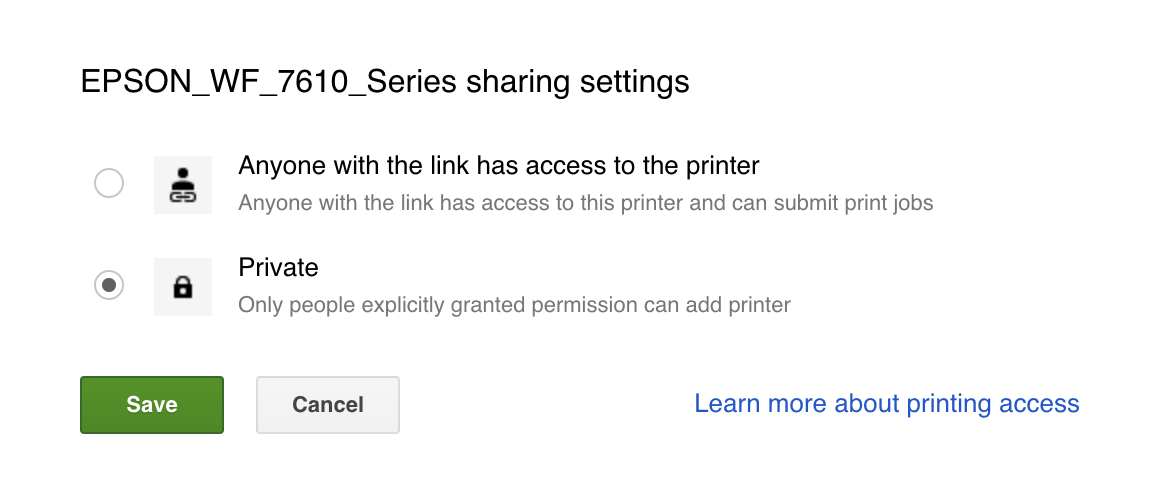
Clicking the Green Share button allows you to share the selected printer. You will then change the printer from Private to "Anyone with the link has access to the printer"


This will then open the dialog to adjust the quota (it's 15 pages/day by default) and get the link. You can also share it out like you would a google doc by typing people's google email in.


From here is as easy as selecting the printer when you go ahead and print.

For best practices in a school if you have a networked high performance copier where teachers regularly make their copies I'd recommend connecting this device as a Google Cloud Printer. You can also use small desktop printers but these can get a lot of wear if shared with a full faculty. Share only to small groups.


  1. Identify and old computer which can remain on and online all the time. 
  2. Create an account in your G-Suite domain to manage all the printers. 
  3. Connect the identified computer to the printer(s). 
  4. Log in to the printer Google account and leave it logged in on that computer. 
  5. Setup your cloud printers on the account and share directly with the personnel you want to have access. Avoid giving the link as this can then be shared with those you don't want to have access. 
  6. Shared members will get an email with a link to add the printer. 
  7. The printer shows up in Chrome with the Blue Person icon.


Enjoy Google Cloud Print! It's marked as still in Beta so we may see more features with it in coming years.

Shift+Z - Tag Files and Folders to Multiple Locations

While training this past weekend I shocked some veteran trainers with a little trick. While I didn't know the ins and outs of the trick, together we explored the feature (Thank you Santi, Stephanie, Anthony, and Cindy). So from our collaboration here's a neat trick to further help organize your data in Google Drive.

Ever needed to have a file or folder in two places at once? Perhaps you have your way of working and structure to your files but some one else needs to see those files in their own file structure. Welcome to Shift+Z for Google Drive.

We look at and think of files and folders in a tree structure. This has been the structure of computer files since early on. But it's not actually how Google stores your files and folders. Google files are stored in a massive database rather than a traditional hard drive structure with indexes to addresses on a physical memory of your items. This database structure allows a lot more flexibility of your data. It's also stored in a column referenced structure so your data can be accessed much faster among trillions of other files.

To take advantage of this structure files are marked with tags which indicate to us the visual structural layout. Because tags are metadata or data about our files much more information can be provided and our files don't really exist in true folder directories. You may be familiar with this with gmail. Adding Labels works in the same manner. Your message is visually located in multiple places at once.

Shift+Z allows you to tag your file to other places in your drive. You can have your file in a folder you normally work with it and tag it to also show up in a shared folder. The file is not a copy it's the same file just in multiple locations. To do this:


  1. Click the file or folder you want to tag to another location.
  2. Press Shift+Z on the keyboard. (Shift key and the Z key at the same time)
  3. A selector will open asking where you want to tag the file to. Navigate to the other location.
  4. Once you have the new location selected Click Add. Your file or folder is now in both places.


To see the locations the file exists in or to remove it from a location:
  1. Right click the file or folder. 
  2. Select "View Details". 
  3. The sidebar will show up on the right.
  4. You will see the locations the file is tagged to under Location:
  5. Clicking the X by a location will remove it from that location.


Send an Email with a Function: Part 2

There are times that automated email can be very helpful. The concept I'm going with here is aligning to a form response. When we ask folks to sign up for something we sometimes need them to have materials or may want to customize the response. Yes, in Forms you can customize a response to the form but what if you want to get fancy? Say people are filling out a form for an audition (I was in the entertainment industry so I'm using an example personal to me) they are going to need to audition materials and information for the particular role they are auditioning for. Here's where a script can help you to select who receives what.

Let's go back to our form we were collecting emails on. We'll keep this simple to begin then I'll give you a case where it can be expanded.

Open the Scripts Tools>Script editor. You should have:
function formResponse(e){
   Logger.log(e.values[0]);
}

Try changing it to:

function formResponse(e){
   Logger.log(e.values);
}

Submit a form response again. 

The 0 index of the form response is the timestamp. If we modify our log to get the value of e, Logger.log(e); we will get all the information returned. Logger.log(e.values); will return all the values of the form response. 
We want to identity the index of the email address. If you are collecting emails automatically if will likely be index 1 or e.values[1]. If you are collecting emails in your form it will be listed in the form at an index relative to all other information you may be collecting. If you have turned on the automatic collecting of email and turned it back off you may have also created an index with no information or null. 
Your incoming data may look like this [9/16/2018 11:03:52, clay@claycodes.org, Clay Smith, Danny] or [9/16/2018 11:05:21, , Clay, Danny, clay@claycodes.org] or something else. 

Each index is separated by a comma. If we want to get the values of a particular index we can use the index number. There are other methods but this is a good concept to start with. 

function formResponse(e){
   Logger.log(e.values);
}

Our function returns all the values to the log. It's now time to start doing something with the values. We want to send an email when some one submits the form. Let's set a variable to be the email address. We can do this with: 

var email = e.values[4]; 

The 4 index is from the image sample above. Your index may be different.

Next let's identify a file URL we want to include in our email. To make it easy here's a link to Bloom's Taxonomy verbs. https://drive.google.com/file/d/0BxUJf-bQ7_PzNnFKMXdOUjJGZGM/view?usp=sharing
We can assign this link to a variable by typing: var fileurl = 'https://drive.google.com/file/d/0BxUJf-bQ7_PzNnFKMXdOUjJGZGM/view?usp=sharing';
I've made up the variable name fileurl just like I did email. I'm using the apostrophe, ', mark to indicate the data is a string or typed letters and not something to be calculated. The apostrophe encloses the information on each end. 

We'll make a variable for the body and include some characters which will be escaped. Meaning they are normally reserved for programming but we will tell the program not to read them as part of the programing. 

var body = 'Thanks for filling out the form here\'s a document to read before we begin. \n ' + fileurl;
The \ is used to escape characters. The apostrophe typically represents the end of a string of characters, in this case we're using it grammatically. So we escape it with \'. Looking at the other escape character we see \n representing a new line. The + symbol is used to put things together. just like we would add 2 and 2 to get 4 a string gets added to make a longer string. The fileurl is a variable so it doesn't go in apostrophes or the system will think it's the word fileurl. 

Now let's put these elements together as an email. 

var mail = GmailApp.sendEmail(email, 'Subject goes here' , body);

The GmailApp loads a library of possible functions. We are using the pre-made sendMail which takes in three inputs, an email address, the subject of the email, and the body of the email. We could have used a variable for the subject but here I've entered it as a string to build on the idea that we don't have to always create variables. we could also replace the variable email with e.values[4] and it will still function.

Putting it all together looks like:

function formResponse(e){
  Logger.log(e.values);
  var email = e.values[4];
  var fileurl = 'https://drive.google.com/file/d/0BxUJf-bQ7_PzNnFKMXdOUjJGZGM/view?usp=sharing';
  var body = 'Thanks for filling out the form here\'s a document to read before we begin. \n ' + fileurl;
  var mail = GmailApp.sendEmail(email, 'Subject goes here' , body);
}

Google handles a lot of security for you. To be sure all the security is engaged for our function let's try running it. It will give us an error but before it does it will go through the permission checks and allow the mail feature to work. Click Run>Run function>formResponse
Accept the permissions and we'll be ready to submit through the Form. 


Go ahead and submit a new form with your email address. Check your email. You should get the response from the script you wrote. Congratulations!!!

So here's a use case which may help. Let's use the audition example. We'll add a dropdown of role with two selections. Danny or Sandy. We'll create an if statement to change the fileurl based on the role. We could also change the text of the body and subject by using the conditional statement but we'll keep it simple. 

function formResponse(e){
  Logger.log(e.values);
  var email = e.values[4];
  var role = e.values[3];
if(role == 'Danny'){
   var fileurl = 'https://drive.google.com/file/d/1-hGi-F7EAi4pBXoDoZHzLQ2qasJ4ie2F/view?usp=sharing';
}else if(role=='Sandy'){
   var fileurl = 'https://drive.google.com/file/d/1t7bVocmj9QaHApIIlc91l3RARg4gXoKa/view?usp=sharing
}
  var body = 'Thanks for filling out the form here\'s a document to read before we begin. \n ' + fileurl;
  var mail = GmailApp.sendEmail(email, 'Subject goes here' , body);
}

Google Apps Script Programming

I’ve been asked a few times to teacher a course for teachers on Google Apps Scripts. So I’m going to begin talking out the structure here until I can get a class together. I'll be working with Chrome to explore Scripts.

Scripts are instructions for a computer. The are read just as they are. they are a form of coding but not all coding or programming is scripting. Some languages have to be turned into specific computer read forms. This translation is called compiling. Scripts are interpreted just as they are. Most web interactions are done with scripts. Google Apps Script uses JavaScript. Typically javascript runs in the users computer. Google Apps Scripts run in the Google Cloud on the google servers. This makes the power of it consistent despite the user's machine. For a JavaScript course check out Codecacademy. I'll be using Google Apps Scripts, the Information on javascript can be helpful for a deeper under standing but not mandatory.


Let’s open Google Apps Scripts. Select One of the main GSuite Apps; Sheets, Docs, or Slides.  
On the top menu bar under Tools select Scripts
This opens a new tab with scripting tools to begin programing Forms opens slightly different from the three dots menu.

There’s a number of features within this tool but let’s keep it simple to begin. In Scripts we write functions. Let’s say you want a series of things done to come up with a particular result. We align code together in a function to be done in order to return some result. 

Usually we make up our own names for functions. The naming of things is usually where people get confused. Some names are reserved by the language creators to do things. To begin we’ll use a reserved function name in our code. JavaScript is case sensitive. So Function is different than function. And X is different than x. Mind your cases as you work. 

In the scripting area we are seeing:
function myFunction(){
}

We can remove this. Basically, it’s a prewritten function which does nothing. Let’s write our own. 
function:

function onOpen(){
  alert(“Hello World”);
}

This function uses a few reserved words.

  • function tells the browser that this is a series of code to be run in the order specified. 
  • onOpen is a reserved function name that binds the function to the document opening. 
  • alert is a reserved name for a function in JavaScript. 

The characters in our function also represent things.

  • The first () after onOpen are there to take in a value. 
  • The { is the start of our function. 
  • The } is the end of our function. 
  • Anything between { and } is part of our function,
  • alert uses () to take in a value. This is synonymous with the onOpen parentheses, (), which can take in a value. 
  • The “ “ are identifying what’s between them as words or what’s called a string datatype. 
  • The ; ends the line of code and tells to browser to move to the next line. 

For a function it must be structured in this way with <some name> being what you want to call your function and action code; being what you want you function to do. 
function <some name>(){
  action code;
  action code;
}

If you haven’t experimented with onOpen yet try it now. Close the document you were working on. Open your document back up from the drive. Give it a moment. Did you get an alert saying “Hello World”? If you did congratulations! If not compare your code to mine meticulously or copy and paste it. Remember it’s case sensitive. 

Let’s consider a usage for our pop-up. It’s great for quick disappearing messages. So directions would not be good here. Perhaps you want to give a shout out to a birthday, a high achiever, someone who did something special or unique. What about a quick reminder, “use the references”, “check your grammar”, “trip on Friday!”. Whatever you write is general to anyone who opens it right now. Can we get specific for individuals? It’s possible. For now let’s celebrate that you just wrote some code that you can use in class right away.

Congratulations!


Any copy of a Doc, Sheet, Slides, or Form will contain the script. If you write some great code you want to use in another file you can copy the code and past it to the new file’s scripting area or copy the file. 

Professional Learning Networks


#nycSchoolsTech
Recently I had the opportunity to educate teachers on the Common Sense Education curriculum at the NYC STEM Institute. While facilitating some really great conversation I was struck by the excitement of the group. Tech always excites me. Especially when it gets used for positive unintended purposes. When I see an educator excited I know it will bring more to their communities. It also indicates they may have been missing out on belonging the right professional learning networks. 

I sometimes assume everyone knows and has see the basic educational technology available; GSuite, Office 365, Apple iWork. And I’m often wrong. Just seeing these things doesn’t mean an educator is taking advantage of them or knows how they work. It also doesn't mean they know how to infuse them in their practice. Giving EdTech to educators doesn’t change practice without proper training. This is where a good PLN, Professional Learning Network can help. 

PLNs take all forms, in-person meetups, conference video chats, online groups, etc. They can be asynchronous happening by email correspondence to bulletin board posting or synchronous through chat, conference calls or the old school face to face meeting. These can be invaluable resources of places to go when you have a question. They allow members to share materials and best practices. They engage people in improving their practice. But I’ve also seen the other side. Some great groups lay quiet and unused. Members join but then don't take the opportunity to engage each other as a resource. PLNs are good when they make an ongoing effort to engage with members. 

How do you know a good PLN:
  1. Engagement- Members and Leadership make an effort to regularly engage others in a group. The once a picnic isn’t enough. The group should pose thought provoking questions. Provide cutting edge resources. And provide a platform for discussion. It’s also helpful if the group doesn’t take itself too seriously. 
  2. Multiple ways to Connect- Not everyone can make it out on a Thursday night once a month. Providing multiple environments for members to meet is key in supporting engagement. Offer multiple digital environments and find a member to upkeep each. Take advantage of live-streams at meetings so members can virtually attend. Make a calendar of events physical and virtual so members can best plan to participate. 
  3. Positivity - It’s an exciting thing to be a part of a community you have been hoping to find. No one wants to be bashed for their opinion. Groups should be very conscious of what their rules are and clearly communicate them. Promote positivity in the group. Celebrate what others are doing. Provide a space for members to show off and talk about what they are doing. Engagement is much richer when it’s positive. Consider at times using a protocol when responding to others. Just saying everything is great defeats the purpose of growing as an educator. A framework of how to give feedback to promote growth supports everyone.
  4. Willingness to Collaborate- If we hoard all the cool things we are doing and how we do them we don’t participate in building capacity. We are past the time that things get created by one person. The best products are a collaboration of many ideas all supporting one another from different sources. 
  5. Wide range of resources- While a Google PLN will focus around Google topics the resources should not eliminate or exclude other tools which can be very valuable. Good resources are often that way because they can be used so universally. Your PLN should be curating resources for easy access by old and new members. 
  6. Partnerships- Networking inside the group is a great way to share practices. But what happens when the sharing gets stale? Developing connections with other networks, communities, and professional businesses can help to infuse new ideas into the group. Support when members really struggle is then just a connection away. 

I’m lucky to have stumbled on the #NYCSchoolsTech PLN in NYC. The group engages teachers through regular posts online by members and group leaders. In person meetings are organized Monthly as part of the PLNs Google Educator subgroup. Opportunities for training events and conferences are regularly posted. Most importantly there is a wide range of positive posts discussing practice, tech issues, job opportunities, and celebrations of work. While I may not always be at an event I gain from it through my colleagues. 

Find yourself a great PLN or make one. Your professional practice has everything to gain. 
#NYCSchoolsTech GEG Meetup NYC

Update: Added Partnership thanks to members of my PLN Andrew Liebowitz and Lisa Nielsen pointing it out. See how wonderful a PLN can be?

GSuite Security Best Practices

Lance Lennon GSuite Security http://bit.ly/GSFESecurity. 

Lance Lennon - Director of Technology in Iowa with a school of 1000 students. 

Separate your GAFE super admin account. Turn off Email and Chat. Set with 2 factor authentication. Make a complex password. Stay logged out. Only log in when you need to. I think this is one of the most important pieces of advice. An entire district can be compromised. Not following this has pushed the NYCDOE, Google, and AmplifiedIT to develop a district parachute to save GAFE domains.


Create custom admin roles. Why needs access and what access do they need? Use admin roles. The More controls can be access to do this. 
Some admin accounts are pre-made, 
Help Desk Admin - Changes passwords. You can customize further for specific OUs.
Services Admin - Turn services on and off. Give read access to OUs. 

Security - Password Requirements and Recovery. Understand what your requirements are. Set minimum based on this. 
Allow users to turn on for 2-step verification. This will help to prevent hacking. Enforce the 2-step verification for staff. For students it’s not a great idea. They would need to use phones for it. When users log in for the first time it does not redirect them to setup 2-step. 
There is a USB key for those that don’t want to use their phone. YuniKey $25. 
Create a video for 2-step verification. 
Keep it fun and light as you turn key tech requirements. 
The initial setup requires a phone. 


DKIM - DomainKey Identified Mail and SPF Sender Policy are meant to stop and minimize spoofing on emails. 
Need access to DNS. See if your setup at https://toolbox.googleapps.com/apps/main/

Email footers. App does with a footer so it goes out on every email without the student/teachers control. 
Apps>GSuite>Settings>Advanced>Append Footer

GSuite Vs Additional - Age Restrictions on Additional, Support on GSuite, 


Suspend Accounts and move to a different OU . Delete when an account is created in error. Documents remain shared with who they are shared with. Moving accounts doesn’t suspend. Need to actually suspend. GAM can do it. 

With Groups to avoid international spoofing require a suffix to groups. This identifies it as a group. 


Manage Alerts in reports. The reports can be setup to alert when there are too many login attempts. Custom reports can be made to track specific events. Users can be tracked to see what they are doing. 
Login can be reported. 
Specific logins can be tracked if a student needs to be located. The physical IP will identify where they last logged in. 

Block sites to prevent adding personal accounts to their school account. 


Applying Digital Skills in the everyday classroom

Our students come to us with interests, some with passions. How can we harness that interest/passion and teach them the digital skills they need for success in the workplace? 


Google has begun supporting the digital learner with a framework of video centered activities to teach the digital skills of GSuite while engaging with curriculum content. Applied Digital Skills has been released for the CSFirst team to teach the GSuite along side some virtually authentic tasks. Students have the opportunity to explore data analysis while creating a concept for the next big blockbuster movie, make a map of some favorite places from a sheet, or do some organized college research.

What Google Provides:
  • 20 units of authentic tasks which can be tailored to the student. 
  • Lesson plans for the teacher with actionable tips on teaching each one. 
  • Rubrics: Customizable with created project samples. 
  • Tracking of student activity. 
  • Extension tasks. 
  • Videos with transcripts (transcripts only can be translated) of demonstrated instruction.
  • Steps bulleted as a summery of action. 

What you need to figure out:
  • How work will be turned in. I recommend using Google Classroom and linking the activity as a resource. Materials are some times built on top of so if you are taking a series of assessment snapshots ask students to turn in a copy of their work so you don't have to rely on Version History. 
  • What topic(s) you will center the lesson around. Not all lessons provide the opportunity to frame the work around a content topic. Be sure to review the work first. 
  • A full set of devices for your class to use. While this can be done in small groups it's best geared to a 1-to-1 environment. It's developed to support students working at their own pace which means they need the digital ability to do so. Devices do work for this so if you are a BYOD environment even with cell phones it can function for you. 
  • How to do the work students are doing. Don't be fooled into thinking this is a simple learn how to alternate row colors in a spreadsheet. The lessons shift into basic programming and you will have a lot of questions you won't expect unless you do it yourself first and even a second time. If you are new to GSuite put yourself out there and take the risk to do it with them. 
  • Why are you doing this work. The why is very important to students. The dreaded answer I get when we talk about why we do something is, "for a grade". That's the soul killer for all of us. Develop with your students the "Why" so it's authentic and has a real world impact. If you are doing an If-Then Story partner with another class or elementary grade and make the "Why" about developing stories for them. 


All students need digital skills. Not just in Digital Citizenship but also in Digital Production/Creation. We need to develop students that not only have content knowledge but will think beyond the facts and innovate the future. Giving students an end goal product and allowing them to select what fills it supports developing digital production skills while exploring passions. Google has provided the framework for just that. A student passionate about sports can be directed to develop an interactive spreadsheet of their favorite sports icons. Add in a map of where each player grew up. Compare players through an interactive slide deck discussing the pros and cons of each player while including comparison graphs as evidence. Wrap all this up into a website and we have a completed project which has taught a student more than just content. They’ve developed digital skills which can be applied to the workplace.

According to Bloomberg our students are most hirable when they can creatively problem-solve, communicate, think strategically, and lead. To do all this our students need to be able to Apply Digital Skills. 


Project based learning with the teacher as facilitator and differentiated delivery of instruction and assessment is a recent push in education. Don’t just talk at them, engage them in building authentic projects and even better if they have real world applications. I would even augment the previous example to suggest students interested in this subject working as a group pick an accessible local sports community team as their topic. Students become connected to an authentic audience and work with real data and information making the experience more meaningful in an ideal world.

While my experience with the Applied Digital Skills delivery platform from the teacher side hasn’t been without issue, I have found the guided activities accessible and helpful for many learners. It gives an entry point for each and works best in a classroom when all learners have access to technology on a 1-to-1 basis. It can work in grouped technology settings but some students may be left behind. I recommend weaving the units as self contained pieces through out your regular curriculum. Thank Google for helping us to develop applicable digital skills. 


Social Emotional Well-Being During Online Teaching and Learning

The world is a bit nutty right now because of the COVID-19 pandemic. Schools are switching to online learning and parents are working from...